
In today’s digital age, transforming physical artwork into a digital format opens up a world of opportunities for artists. Whether you're a painter, illustrator, sculptor, or mixed-media creator, digitizing your artwork allows you to share, sell, archive, and even enhance your creations with a global audience. This process can seem daunting at first, but with the right tools, techniques, and mindset, you can seamlessly bridge the gap between the tangible and the digital. In this 1000-word guide, we’ll explore the why, how, and what of digitizing your artwork, offering practical advice to help you get started and refine your approach.
Why Digitize Your Artwork?
The decision to digitize your artwork comes with numerous benefits. First and foremost, it provides a way to preserve your creations. Physical pieces are susceptible to damage from environmental factors like light, humidity, or accidents, whereas digital files can be stored indefinitely with proper backups. Digitization also enables you to share your work effortlessly—whether through social media, online portfolios, or email—without risking the original. Another key advantage is the ability to monetize your art more effectively. Digital files can be turned into prints, merchandise, or NFTs (non-fungible tokens), expanding your reach into markets that physical art alone might not access. Additionally, digitizing allows for experimentation. You can tweak colours, adjust compositions, or combine elements in editing software, all without altering the original piece. For artists looking to collaborate or showcase their work professionally, having high-quality digital versions is often a prerequisite.
Step 1: Preparing Your Artwork
Before you begin the digitization process, preparation is essential to ensure the best results. Start by cleaning your artwork. Dust, smudges, or stray marks can show up in scans or photographs, so gently wipe surfaces or use a soft brush as needed, depending on the medium. For fragile pieces, handle with care to avoid creasing or tearing. Next, consider the lighting and environment. Natural light can work well, but avoid direct sunlight, which may cast harsh shadows or fade colours over time. If you’re photographing rather than scanning, set up in a well-lit room with diffused light to minimize glare. For three-dimensional works like sculptures, plan how you’ll capture all angles—rotating the piece or taking multiple shots might be necessary. Finally, decide whether you’ll scan or photograph your artwork. Flat, two-dimensional pieces (like drawings or paintings on paper) are often best suited for scanning, while larger or textured works (like canvases or 3D objects) may require photography. Your choice will depend on your equipment and the artwork’s size and nature.
Step 2: Choosing the Right Tools
The quality of your digitized artwork hinges on the tools you use. Here’s a breakdown of the essentials:
- Scanner: For small to medium-sized, flat artwork, a scanner is your best bet. Look for one with at least 300 DPI (dots per inch) resolution—600 DPI or higher is ideal for fine details or professional prints. Affordable flatbed scanners from brands like Epson or Canon work well for most artists. Place your artwork face-down on the glass, align it carefully, and scan at a high resolution to capture every nuance.
- Camera: For larger pieces or 3D works, a camera is more practical. A DSLR or mirrorless camera with a good lens (e.g., 50mm prime) offers excellent control over focus and depth. If you’re on a budget, a modern smartphone with a high-resolution camera can suffice. Use a tripod to avoid shaky shots, and shoot in RAW format for maximum editing flexibility.
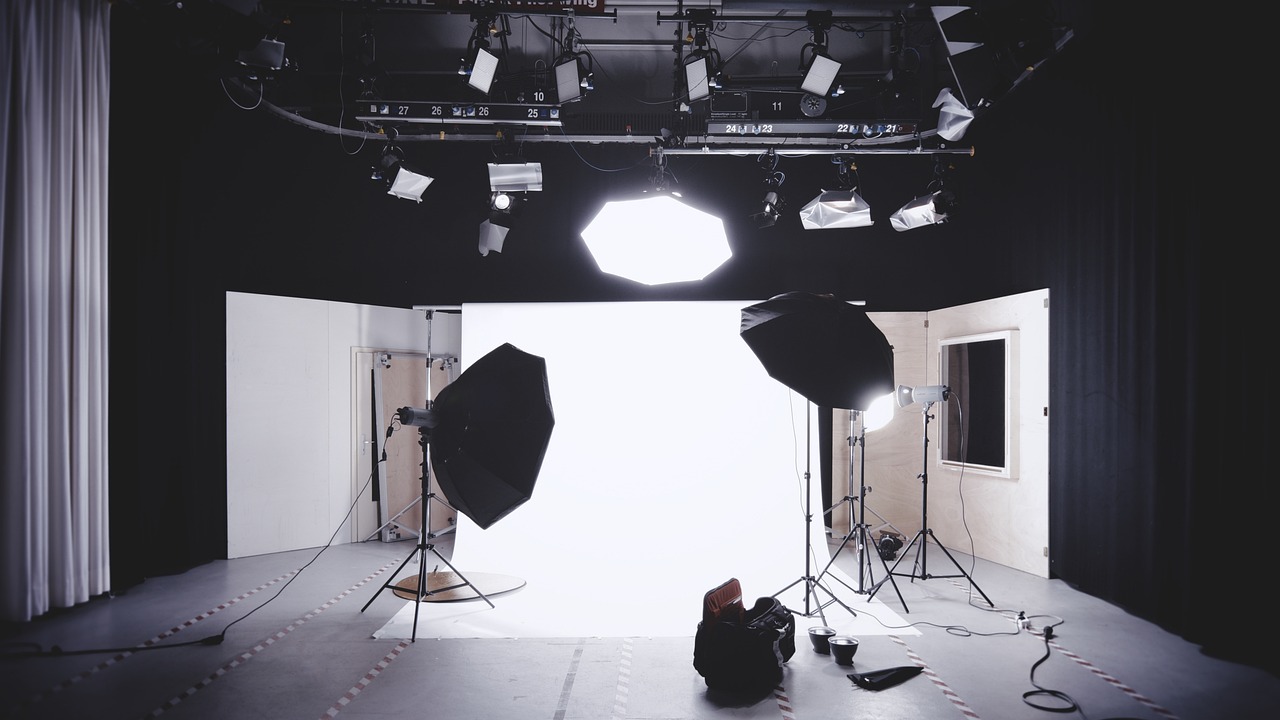
- Lighting: If photographing, invest in softbox lights or ring lights to evenly illuminate your work. Avoid mixing light sources (e.g., daylight and fluorescent), as this can skew colors.
- Software: Post-processing is key to refining your digital files. Adobe Photoshop and Lightroom are industry standards for editing, but free alternatives like GIMP or Photopea can also get the job done. For basic adjustments, even smartphone apps like Snapseed work in a pinch.
Step 3: Capturing Your Artwork
If you’re scanning, the process is straightforward. Open your scanner software, set the resolution (300 DPI minimum), and choose a color mode (RGB for digital use, CMYK for print). Preview the scan, adjust the crop if needed, and save the file as a TIFF or PNG for lossless quality—JPEGs compress data and may degrade details.
For photography, set up your artwork against a neutral background (white, gray, or black). Position your camera parallel to the surface to avoid distortion, and ensure the artwork fills the frame without cropping edges. Use a low ISO (100-200) for clarity, and adjust aperture (f/8 or higher) for sharpness across the image. Take test shots, review them on a larger screen, and tweak lighting or angles as needed. For 3D pieces, shoot from multiple perspectives to showcase the form.
Step 4: Editing Your Digital Files
Once you’ve captured your artwork, editing polishes it into a professional-grade file. Import your scan or photo into your chosen software. Start with basic adjustments: crop any excess borders, straighten the image if it’s skewed, and adjust exposure or contrast to match the original’s lighting.
Colour correction is critical—screens and printers interpret colors differently than the human eye. Use tools like the eyedropper or curves to match hues to your physical piece, and compare side-by-side if possible. For textured works, enhance details by tweaking sharpness or clarity, but avoid overdoing it, as this can introduce artificial noise.
Remove imperfections (e.g., dust specks or reflections) with cloning or healing tools. If you’re preparing the file for specific uses—like web display (72 DPI) or printing (300 DPI)—resize accordingly, keeping the aspect ratio intact. Save your master file in a high-quality format (TIFF or PSD), then export copies (JPEG for web, PNG for transparency) as needed.
Step 5: Storing and Sharing Your Work
With your artwork digitized, storage is the next priority. Back up files on an external hard drive or cloud service (Google Drive, Dropbox, etc.) to protect against data loss. Organize them with clear naming conventions—e.g., “Title_Medium_Year”—for easy retrieval.
Sharing your work depends on your goals. For online portfolios (Behance, ArtStation), upload medium-resolution files to deter theft while showcasing quality. For sales, platforms like Etsy or Redbubble let you offer prints or products directly. If you’re submitting to galleries or clients, send high-resolution files via secure links, ensuring they’re watermarked if copyright is a concern.
Tips for Success
- Practice Consistency: Develop a workflow (e.g., scan settings, editing steps) to streamline future projects.
- Test Outputs: Print a sample or view your file on multiple screens to ensure fidelity.
- Learn Your Medium: Watercolors may need different editing than oils due to transparency or texture.
- Stay Updated: Technology evolves—keep an eye on new tools or techniques.
Conclusion
Digitizing your artwork is more than a technical task; it’s a gateway to amplifying your creative reach. By preparing thoughtfully, choosing the right tools, capturing accurately, editing with care, and sharing strategically, you can transform your physical creations into versatile digital assets. Whether you’re preserving a sketchbook or launching an online store, this process empowers you to connect with audiences and opportunities like never before. Start small, experiment, and watch your art thrive in the digital realm.